> ## Documentation Index
> Fetch the complete documentation index at: https://flatfileinc-remove-rss-json.mintlify.site/llms.txt
> Use this file to discover all available pages before exploring further.
# Using actions
> Trigger operations based on user input.
An Action is a code-based operation that runs where that Action is mounted. Actions run when a user clicks the corresponding user prompt in Flatfile.
## Overview
Workbook & Sheet-mounted Actions are configured within a Blueprint object, while File-mounted actions are appended to the file during the upload process.
The executable code within an Action is compiled into a Job entity, providing the capability to run asynchronously or immediately.
Sheet-mounted actions can be executed on the entire Sheet, for a filtered view of the Sheet, or selectively for the chosen records.
## Workbook-mounted
Once a user has extracted and mapped data into a [Workbook](/learning-center/architecture/workbooks), it may be more efficient to run an operation on the entire dataset rather than making atomic transformations at the record- or field-level.
For example:
* Sending a webhook that notifies your API of the data's readiness
* Populating a Sheet with data from another source
* Adding two different fields together after a user review's initial validation checks
* Moving valid data from an editable Sheet to a read-only Sheet
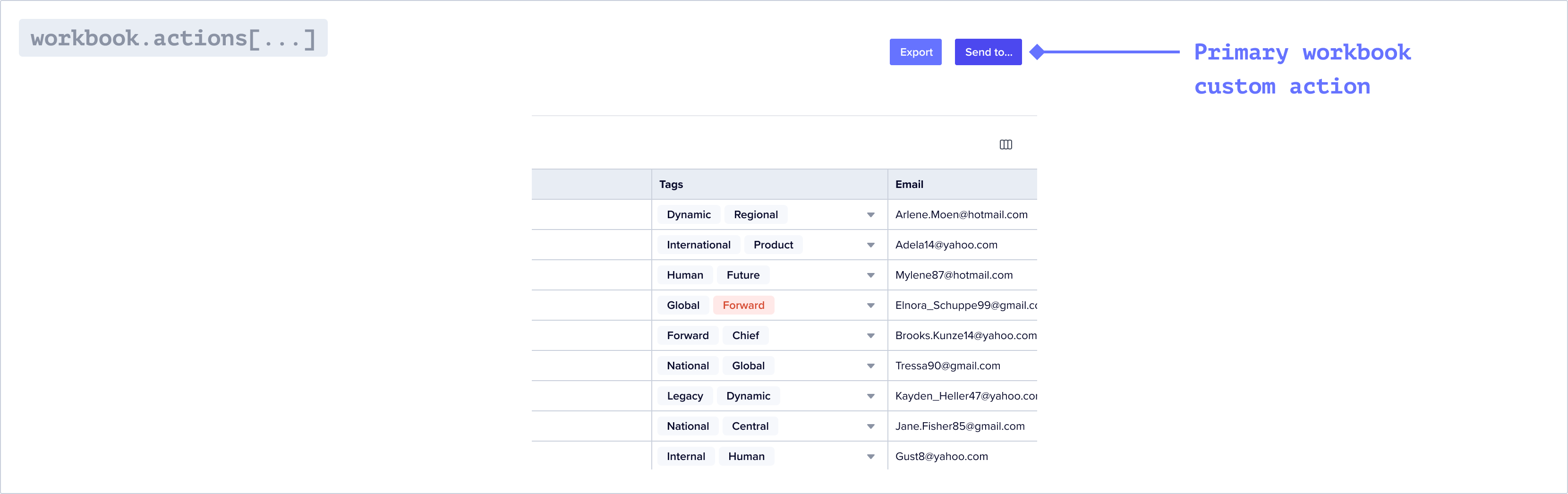
Workbook-mounted actions are represented as buttons in the top right of the Workbook.
 ### Usage
First, configure your action on your Blueprint.
If you configure `primary: true` on an Action, it will be represented as the
rightmost button in the Workbook.
If you configure `trackChanges: true`, it will disable your actions
until all commits are complete (usually data hooks).
Next, listen for a `job:ready` and filter on the `job` you'd like to process. Be sure to complete the job when it's complete.
## Document-mounted
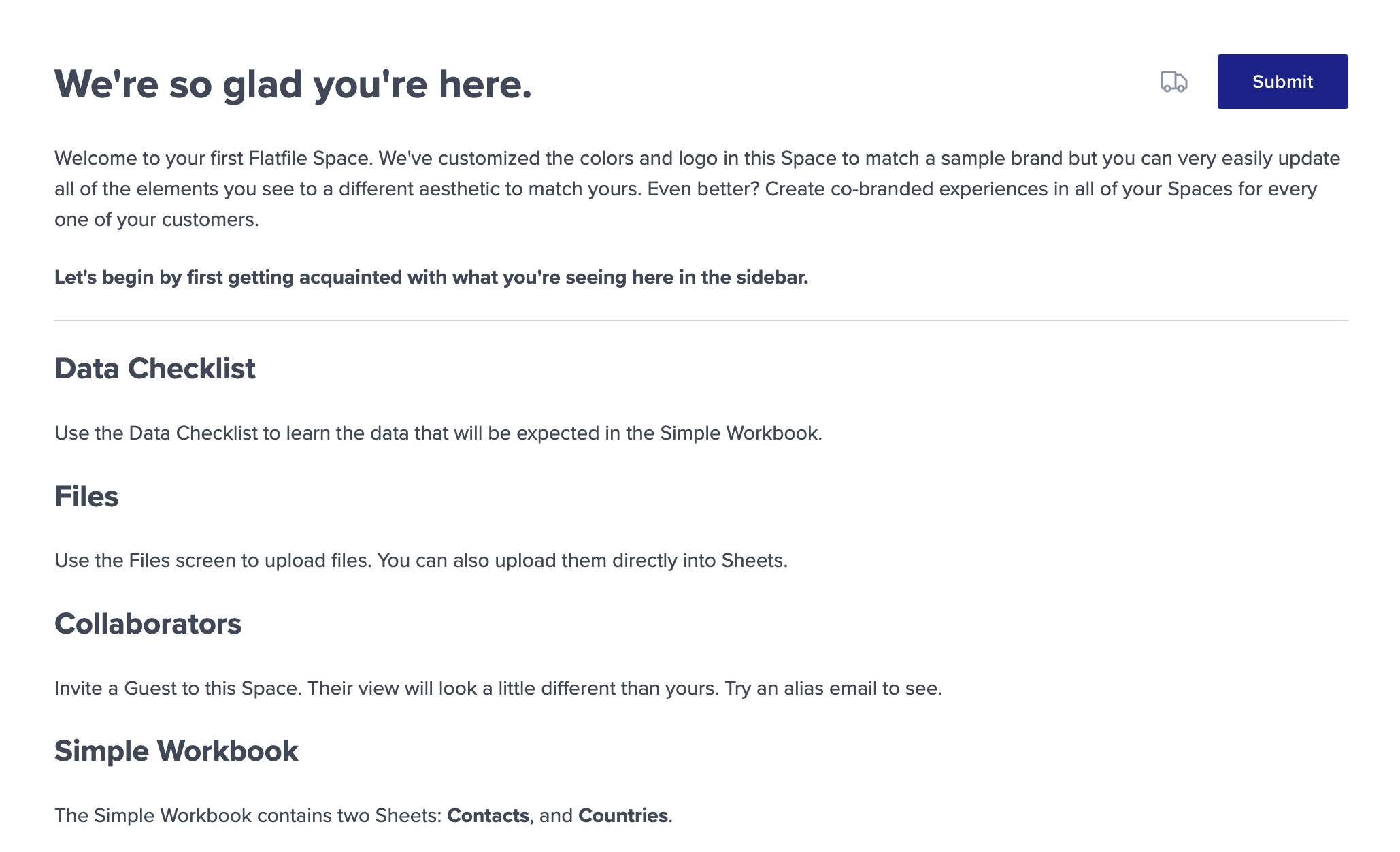
Document-mounted actions are similar to Workbook-mounted actions. They appear in the top right corner of your Document:
### Usage
First, configure your action on your Blueprint.
If you configure `primary: true` on an Action, it will be represented as the
rightmost button in the Workbook.
If you configure `trackChanges: true`, it will disable your actions
until all commits are complete (usually data hooks).
Next, listen for a `job:ready` and filter on the `job` you'd like to process. Be sure to complete the job when it's complete.
## Document-mounted
Document-mounted actions are similar to Workbook-mounted actions. They appear in the top right corner of your Document:
 Read more about Documents [here](/learning-center/guides/documents).
### Usage
Define Document-mounted Actions using the `actions` parameter when you create a Document.
If you configure `primary: true` on an Action, it will be represented as the
rightmost button in the Document.
In your listener, listen for the job's event and perform your desired operations.
```js listener.js theme={"system"}
export default function flatfileEventListener(listener) {
listener.on(
"job:ready",
{ job: "document:contacts:submit" },
async (event) => {
const { context, payload } = event;
const { jobId, workbookId } = context;
try {
await api.jobs.ack(jobId, {
info: "Starting submit job...",
// "progress" value must be a whole integer
progress: 10,
estimatedCompletionAt: new Date("Tue Aug 23 2023 16:19:42 GMT-0700"),
});
// Do your work here
await api.jobs.complete(jobId, {
outcome: {
message: `Submit job was completed succesfully.`,
},
});
} catch (error) {
console.log(`There was an error: ${JSON.stringify(error)}`);
await api.jobs.fail(jobId, {
outcome: {
message: `This job failed.`,
},
});
}
}
);
}
```
```js listener.ts theme={"system"}
import { FlatfileListener, FlatfileEvent } from "@flatfile/listener";
export default function flatfileEventListener(listener: FlatfileListener) {
listener.on(
"job:ready",
{ job: "document:contacts:submit" },
async (event: FlatfileEvent) => {
const { context, payload } = event;
const { jobId, workbookId } = context;
try {
await api.jobs.ack(jobId, {
info: "Starting submit job...",
// "progress" value must be a whole integer
progress: 10,
estimatedCompletionAt: new Date("Tue Aug 23 2023 16:19:42 GMT-0700"),
});
// Do your work here
await api.jobs.complete(jobId, {
outcome: {
message: `Submit job was completed succesfully.`,
},
});
} catch (error) {
console.log(`There was an error: ${JSON.stringify(error)}`);
await api.jobs.fail(jobId, {
outcome: {
message: `This job failed.`,
},
});
}
}
);
}
```
## Sheet-mounted
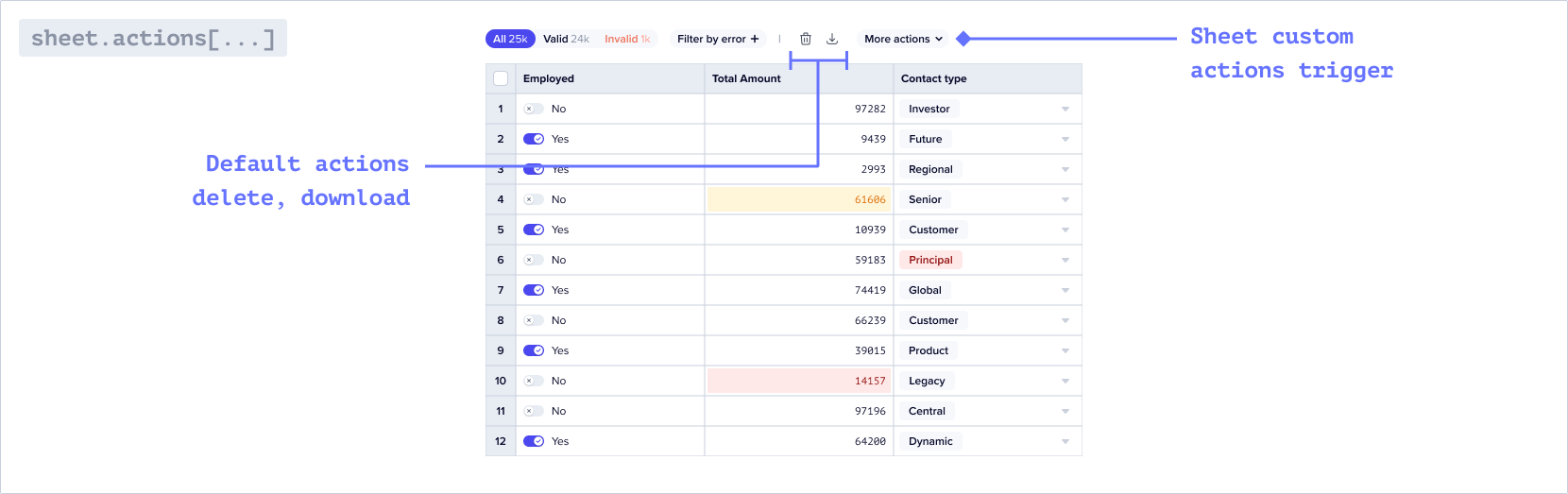
Each Sheet has built-in Actions like download.
Sheet-mounted actions are represented as a dropdown in the toolbar of the Sheet.
Read more about Documents [here](/learning-center/guides/documents).
### Usage
Define Document-mounted Actions using the `actions` parameter when you create a Document.
If you configure `primary: true` on an Action, it will be represented as the
rightmost button in the Document.
In your listener, listen for the job's event and perform your desired operations.
```js listener.js theme={"system"}
export default function flatfileEventListener(listener) {
listener.on(
"job:ready",
{ job: "document:contacts:submit" },
async (event) => {
const { context, payload } = event;
const { jobId, workbookId } = context;
try {
await api.jobs.ack(jobId, {
info: "Starting submit job...",
// "progress" value must be a whole integer
progress: 10,
estimatedCompletionAt: new Date("Tue Aug 23 2023 16:19:42 GMT-0700"),
});
// Do your work here
await api.jobs.complete(jobId, {
outcome: {
message: `Submit job was completed succesfully.`,
},
});
} catch (error) {
console.log(`There was an error: ${JSON.stringify(error)}`);
await api.jobs.fail(jobId, {
outcome: {
message: `This job failed.`,
},
});
}
}
);
}
```
```js listener.ts theme={"system"}
import { FlatfileListener, FlatfileEvent } from "@flatfile/listener";
export default function flatfileEventListener(listener: FlatfileListener) {
listener.on(
"job:ready",
{ job: "document:contacts:submit" },
async (event: FlatfileEvent) => {
const { context, payload } = event;
const { jobId, workbookId } = context;
try {
await api.jobs.ack(jobId, {
info: "Starting submit job...",
// "progress" value must be a whole integer
progress: 10,
estimatedCompletionAt: new Date("Tue Aug 23 2023 16:19:42 GMT-0700"),
});
// Do your work here
await api.jobs.complete(jobId, {
outcome: {
message: `Submit job was completed succesfully.`,
},
});
} catch (error) {
console.log(`There was an error: ${JSON.stringify(error)}`);
await api.jobs.fail(jobId, {
outcome: {
message: `This job failed.`,
},
});
}
}
);
}
```
## Sheet-mounted
Each Sheet has built-in Actions like download.
Sheet-mounted actions are represented as a dropdown in the toolbar of the Sheet.
 ### Usage
First, configure your action on your Blueprint.
```jsx sheet.js theme={"system"}
sheets : [
{
name: "Sheet Name",
actions: [
{
operation: 'duplicate',
mode: 'background',
label: 'Duplicate selected names',
description: 'Duplicate names for selected rows',
primary: true,
},
{...}
]
}
]
```
Next, listen for a `job:ready` and filter on the `domain` (sheet) and the
`operation` of where the action was placed. Be sure to complete to job when
it's complete.
```jsx listener.js theme={"system"}
listener.on(
"job:ready",
{ job: "sheet:duplicate" },
async ({ context: { jobId } }) => {
try {
await api.jobs.ack(jobId, {
info: "Getting started.",
// "progress" value must be a whole integer
progress: 10,
estimatedCompletionAt: new Date("Tue Aug 23 2023 16:19:42 GMT-0700"),
});
// Do your work here
await api.jobs.complete(jobId, {
info: "This job is now complete.",
});
} catch (error) {
console.error("Error:", error.stack);
await api.jobs.fail(jobId, {
info: "This job did not work.",
});
}
}
);
```
```jsx listener.ts theme={"system"}
listener.on(
"job:ready",
{ job: "sheet:duplicate" },
async ({ context: { jobId } }: FlatfileEvent) => {
try {
await api.jobs.ack(jobId, {
info: "Getting started.",
// "progress" value must be a whole integer
progress: 10,
estimatedCompletionAt: new Date("Tue Aug 23 2023 16:19:42 GMT-0700"),
});
// Do your work here
await api.jobs.complete(jobId, {
info: "This job is now complete.",
});
} catch (error) {
console.error("Error:", error.stack);
await api.jobs.fail(jobId, {
info: "This job did not work.",
});
}
}
);
```
Get the example in the [getting-started](https://github.com/FlatFilers/flatfile-docs-kitchen-sink/tree/main/typescript/actions) repo
### Retrieving data
Data from the Sheet can be retrieved either by calling the API with `records.get` or through data passed in through `event.data`. Here are some examples demonstrating how you can extract data from a Sheet-mounted action:
#### From the entire Sheet
This method allows you to access and process data from the complete Sheet, regardless of the current view or selected records.
```jsx theme={"system"}
//inside listener.on()
const { jobId, sheetId } = event.context;
//retrieve all records from sheet
const response = await api.records.get(sheetId);
//print records
console.log(response.data.records);
```
#### From a filtered view of the Sheet
By applying filters to the Sheet, you can narrow down the data based on specific criteria. This enables you to retrieve and work with a subset of records that meet the defined filter conditions.
`event.data` returns a promise resolving to an object with a records property so we extract the records property directly from the event.data object.
If rows are selected, only the corresponding records will be passed through
the event for further processing.
```jsx theme={"system"}
//inside listener.on()
const { jobId } = event.context;
const { records } = await event.data;
try {
if (!records || records.length === 0) {
console.log("No rows were selected or in view.");
await api.jobs.fail(jobId, {
outcome: {
message: "No rows were selected or in view, please try again.",
},
});
return;
}
//print records
console.log(records);
await api.jobs.complete(jobId, {
outcome: {
message: "Records were printed to console, check it out.",
},
});
} catch (error) {
console.log(`Error: ${JSON.stringify(error, null, 2)}`);
await api.jobs.fail(jobId, {
outcome: {
message: "This action failed, check logs.",
},
});
}
```
#### For chosen records
When rows are selected, `event.data` will only extract information exclusively for the chosen records, providing focused data retrieval for targeted analysis or operations.
`event.data` returns a promise resolving to an object with a records property so we extract the records property directly from the event.data object.
This code is the same as the filtered view of the Sheet.
```jsx theme={"system"}
//inside listener.on()
const { jobId } = event.context;
const { records } = await event.data;
try {
if (!records || records.length === 0) {
console.log("No rows were selected or in view.");
await api.jobs.fail(jobId, {
outcome: {
message: "No rows were selected or in view, please try again.",
},
});
return;
}
//print records
console.log(records);
await api.jobs.complete(jobId, {
outcome: {
message: "Records were printed to console, check it out.",
},
});
} catch (error) {
console.log(`Error: ${JSON.stringify(error, null, 2)}`);
await api.jobs.fail(jobId, {
outcome: {
message: "This action failed, check logs.",
},
});
}
```
## File-mounted
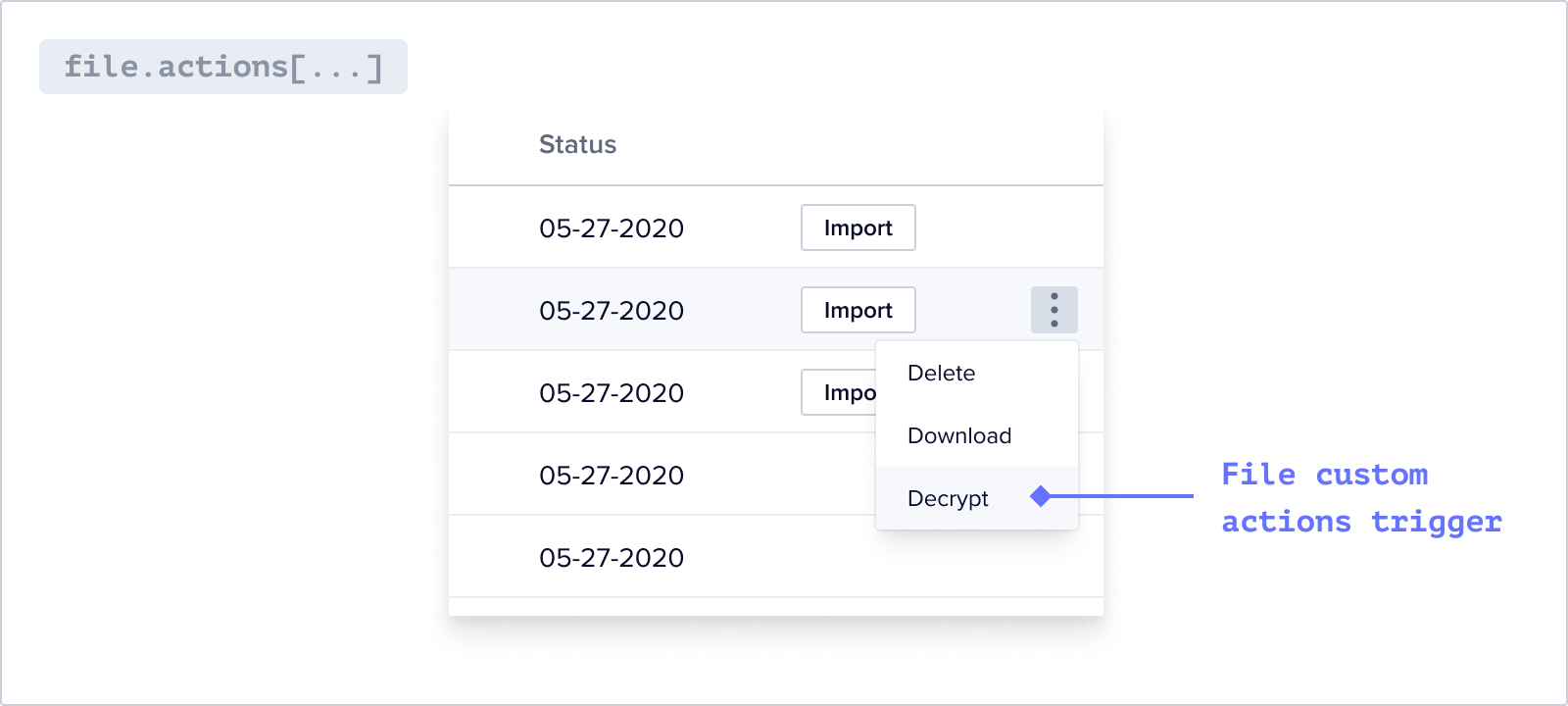
Each file has built-in actions like Delete and Download.
File-mounted actions are represented as a dropdown menu for each file in the Files list. You can attach additional actions to a File.
### Usage
First, configure your action on your Blueprint.
```jsx sheet.js theme={"system"}
sheets : [
{
name: "Sheet Name",
actions: [
{
operation: 'duplicate',
mode: 'background',
label: 'Duplicate selected names',
description: 'Duplicate names for selected rows',
primary: true,
},
{...}
]
}
]
```
Next, listen for a `job:ready` and filter on the `domain` (sheet) and the
`operation` of where the action was placed. Be sure to complete to job when
it's complete.
```jsx listener.js theme={"system"}
listener.on(
"job:ready",
{ job: "sheet:duplicate" },
async ({ context: { jobId } }) => {
try {
await api.jobs.ack(jobId, {
info: "Getting started.",
// "progress" value must be a whole integer
progress: 10,
estimatedCompletionAt: new Date("Tue Aug 23 2023 16:19:42 GMT-0700"),
});
// Do your work here
await api.jobs.complete(jobId, {
info: "This job is now complete.",
});
} catch (error) {
console.error("Error:", error.stack);
await api.jobs.fail(jobId, {
info: "This job did not work.",
});
}
}
);
```
```jsx listener.ts theme={"system"}
listener.on(
"job:ready",
{ job: "sheet:duplicate" },
async ({ context: { jobId } }: FlatfileEvent) => {
try {
await api.jobs.ack(jobId, {
info: "Getting started.",
// "progress" value must be a whole integer
progress: 10,
estimatedCompletionAt: new Date("Tue Aug 23 2023 16:19:42 GMT-0700"),
});
// Do your work here
await api.jobs.complete(jobId, {
info: "This job is now complete.",
});
} catch (error) {
console.error("Error:", error.stack);
await api.jobs.fail(jobId, {
info: "This job did not work.",
});
}
}
);
```
Get the example in the [getting-started](https://github.com/FlatFilers/flatfile-docs-kitchen-sink/tree/main/typescript/actions) repo
### Retrieving data
Data from the Sheet can be retrieved either by calling the API with `records.get` or through data passed in through `event.data`. Here are some examples demonstrating how you can extract data from a Sheet-mounted action:
#### From the entire Sheet
This method allows you to access and process data from the complete Sheet, regardless of the current view or selected records.
```jsx theme={"system"}
//inside listener.on()
const { jobId, sheetId } = event.context;
//retrieve all records from sheet
const response = await api.records.get(sheetId);
//print records
console.log(response.data.records);
```
#### From a filtered view of the Sheet
By applying filters to the Sheet, you can narrow down the data based on specific criteria. This enables you to retrieve and work with a subset of records that meet the defined filter conditions.
`event.data` returns a promise resolving to an object with a records property so we extract the records property directly from the event.data object.
If rows are selected, only the corresponding records will be passed through
the event for further processing.
```jsx theme={"system"}
//inside listener.on()
const { jobId } = event.context;
const { records } = await event.data;
try {
if (!records || records.length === 0) {
console.log("No rows were selected or in view.");
await api.jobs.fail(jobId, {
outcome: {
message: "No rows were selected or in view, please try again.",
},
});
return;
}
//print records
console.log(records);
await api.jobs.complete(jobId, {
outcome: {
message: "Records were printed to console, check it out.",
},
});
} catch (error) {
console.log(`Error: ${JSON.stringify(error, null, 2)}`);
await api.jobs.fail(jobId, {
outcome: {
message: "This action failed, check logs.",
},
});
}
```
#### For chosen records
When rows are selected, `event.data` will only extract information exclusively for the chosen records, providing focused data retrieval for targeted analysis or operations.
`event.data` returns a promise resolving to an object with a records property so we extract the records property directly from the event.data object.
This code is the same as the filtered view of the Sheet.
```jsx theme={"system"}
//inside listener.on()
const { jobId } = event.context;
const { records } = await event.data;
try {
if (!records || records.length === 0) {
console.log("No rows were selected or in view.");
await api.jobs.fail(jobId, {
outcome: {
message: "No rows were selected or in view, please try again.",
},
});
return;
}
//print records
console.log(records);
await api.jobs.complete(jobId, {
outcome: {
message: "Records were printed to console, check it out.",
},
});
} catch (error) {
console.log(`Error: ${JSON.stringify(error, null, 2)}`);
await api.jobs.fail(jobId, {
outcome: {
message: "This action failed, check logs.",
},
});
}
```
## File-mounted
Each file has built-in actions like Delete and Download.
File-mounted actions are represented as a dropdown menu for each file in the Files list. You can attach additional actions to a File.
 ### Usage
First, listen for a `file:ready` event and add one or more actions to the file.
```jsx listener.js file:ready theme={"system"}
listener.on("file:created", async ({ context: { fileId } }) => {
const file = await api.files.get(fileId);
const actions = file.data?.actions || [];
const newActions = [
...actions,
{
operation: "logFileContents",
label: "Log File Metadata",
description: "This will log the file metadata.",
},
{
operation: "decryptAction",
label: "Decrypt File",
description: "This will create a new decrypted file.",
},
];
await api.files.update(fileId, {
actions: newActions,
});
});
```
```jsx listener.ts file:ready theme={"system"}
listener.on("file:created", async ({ context: { fileId } }: FlatfileEvent) => {
const file = await api.files.get(fileId);
const actions = file.data?.actions || [];
const newActions = [
...actions,
{
operation: "logFileContents",
label: "Log File Metadata",
description: "This will log the file metadata.",
},
{
operation: "decryptAction",
label: "Decrypt File",
description: "This will create a new decrypted file.",
},
];
await api.files.update(fileId, {
actions: newActions,
});
});
```
Next, listen for `job:ready` and filter on the `domain` (file) and the `operation` of where the Action was placed. Be sure to complete to job when it's complete.
```JavaScript listener.js job:ready theme={"system"}
//when the button is clicked in the file dropdown
listener.on(
"job:ready",
{ job: "file:logFileContents" },
async ({ context: { fileId, jobId } }) => {
await acknowledgeJob(jobId, "Gettin started.", 10);
const file = await api.files.get(fileId);
console.log({ file });
await completeJob(jobId, "Logging file contents is complete.");
}
);
listener.on(
"job:ready",
{ job: "file:decryptAction" },
async ({ context: { spaceId, fileId, jobId, environmentId } }) => {
try {
await acknowledgeJob(jobId, "Gettin started.", 10);
const fileResponse = await api.files.get(fileId);
const buffer = await getFileBufferFromApi(fileId);
const { name, ext } = fileResponse.data;
const newFileName = name
? name.split(".")[0] + "[Decrypted]." + ext
: "DecryptedFile.csv";
const formData = new FormData();
formData.append("file", buffer, { filename: newFileName });
formData.append("spaceId", spaceId);
formData.append("environmentId", environmentId);
await uploadDecryptedFile(formData);
await completeJob(jobId, "Decrypting is now complete.");
} catch (e) {
await failJob(jobId, "The decryption job failed.");
}
}
);
async function acknowledgeJob(jobId, info, progress, estimatedCompletionAt) {
await api.jobs.ack(jobId, {
info,
progress,
estimatedCompletionAt
});
}
async function completeJob(jobId, message) {
await api.jobs.complete(jobId, {
outcome: {
message,
},
});
}
async function failJob(jobId, message) {
await api.jobs.fail(jobId, {
outcome: {
message,
},
});
}
```
```jsx listener.ts job:ready theme={"system"}
//when the button is clicked in the file dropdown
listener.on(
"job:ready",
{ job: "file:logFileContents" },
async ({ context: { fileId, jobId } }: FlatfileEvent) => {
await acknowledgeJob(jobId, "Gettin started.", 10);
const file = await api.files.get(fileId);
console.log({ file });
await completeJob(jobId, "Logging file contents is complete.");
}
);
listener.on(
"job:ready",
{ job: "file:decryptAction" },
async ({
context: { spaceId, fileId, jobId, environmentId },
}: FlatfileEvent) => {
try {
await acknowledgeJob(jobId, "Gettin started.", 10);
const fileResponse = await api.files.get(fileId);
const buffer = await getFileBufferFromApi(fileId);
const { name, ext } = fileResponse.data;
const newFileName = name
? name.split(".")[0] + "[Decrypted]." + ext
: "DecryptedFile.csv";
const formData = new FormData();
formData.append("file", buffer, { filename: newFileName });
formData.append("spaceId", spaceId);
formData.append("environmentId", environmentId);
await uploadDecryptedFile(formData);
await completeJob(jobId, "Decrypting is now complete.");
} catch (e) {
await failJob(jobId, "The decryption job failed.");
}
}
);
async function acknowledgeJob(
jobId: string,
info: string,
progress: number,
estimatedCompletionAt: Date | undefined = undefined
) {
await api.jobs.ack(jobId, {
info,
progress,
estimatedCompletionAt,
});
}
async function completeJob(jobId: string, message: string) {
await api.jobs.complete(jobId, {
outcome: {
message,
},
});
}
async function failJob(jobId: string, message: string) {
await api.jobs.fail(jobId, {
outcome: {
message,
},
});
}
```
Get the example in the [flatfile-docs-kitchen-sink ts](https://github.com/FlatFilers/flatfile-docs-kitchen-sink/blob/main/typescript/shared/workbook_submit.ts) or [flatfile-docs-kitchen-sink js](https://github.com/FlatFilers/flatfile-docs-kitchen-sink/blob/main/javascript/shared/workbook_submit.js) repo
## Actions with Input Forms
If you configure input fields for your action, a secondary dialog will be presented to the end user, prompting them to provide the necessary information. Once the user has entered the required details, they can proceed with the action.
### Usage
First, configure your action to have an inputForm on your Blueprint. These will appear once the action button is clicked.
Next, listen for a `job:ready` and filter on the `job` you'd like to process. Grab the data entered in the form from the job itself and leverage it as required for your use case.
```js listener.js theme={"system"}
import api from "@flatfile/api";
export default async function (listener) {
listener.on(
"job:ready",
{ job: "workbook:actionWithInput" },
async (event) => {
const { jobId } = event.context;
try {
await api.jobs.ack(jobId, {
info: "Acknowledging job",
progress: 1,
});
// retrieve input
const { data: job } = await api.jobs.get(jobId);
const input = job.input;
console.log({ input });
// do something with input...
await api.jobs.complete(jobId, {
outcome: {
message: "Action was successful",
},
});
return;
} catch (error) {
console.error(error);
await api.jobs.fail(jobId, {
outcome: {
message: "Action failed",
},
});
return;
}
}
);
}
```
```ts listener.ts theme={"system"}
import api from "@flatfile/api";
import type { FlatfileEvent, FlatfileListener } from "@flatfile/listener";
export default async function (listener: FlatfileListener) {
listener.on(
"job:ready",
{ job: "workbook:actionWithInput" },
async (event: FlatfileEvent) => {
const { jobId } = event.context;
try {
await api.jobs.ack(jobId, {
info: "Acknowledging job",
progress: 1,
});
// retrieve input
const { data: job } = await api.jobs.get(jobId);
const input = job.input;
console.log({ input });
// do something with input...
await api.jobs.complete(jobId, {
outcome: {
message: "Action was successful",
},
});
return;
} catch (error) {
console.error(error);
await api.jobs.fail(jobId, {
outcome: {
message: "Action failed",
},
});
return;
}
}
);
}
```
## Actions with Constraints
### Usage
#### Workbook & Sheet-mounted
1. Adding a `hasAllValid` constraint on an Action will
disable a Workbook Action when there are invalid records.
2. Adding a `hasData` on an Action will
disable a Workbook Action when there are no records.
```jsx theme={"system"}
actions: [
{
operation: 'submitActionFg',
mode: 'foreground',
label: 'Submit data elsewhere',
description: 'Submit this data to a webhook.',
primary: true,
constraints: [{ type: 'hasAllValid'},{ type: 'hasData' }]
},
{...}
],
```
#### Sheet-Mounted only
Adding a constraint of `hasSelection` on an Action will disable a Sheet Action when no records in the Sheet are selected.
```jsx sheet.js theme={"system"}
sheets : [
{
name: "Sheet Name",
actions: [
{
operation: 'duplicate',
mode: 'background',
label: 'Duplicate selected names',
description: 'Duplicate names for selected rows',
constraints: [{ type: 'hasSelection' }],
primary: true,
},
{...}
]
}
]
```
## Actions with Messages
Add custom messages to actions, tailored according to their state:
* Error
* Info
These messages will be displayed as tooltips when users hover over an action, providing context-specific text that corresponds to the action's current state. When an error message is present on an action, the action will be disabled.
### Usage
Simply add a messages property to your action configuration. This property should be an array of objects, each specifying a message type and its content.
```jsx theme={"system"}
actions: [
{
operation: 'duplicate',
mode: 'background',
label: 'Duplicate selected names',
description: 'Duplicate names for selected rows',
messages: [
{ type: 'error', content: 'This is an error message' },
],
primary: true,
},
{...}
]
```
## Example Project
Find the documents example in the Flatfile GitHub repository.
Clone the Actions example in Typescript
Clone the Actions example in Javascript
### Usage
First, listen for a `file:ready` event and add one or more actions to the file.
```jsx listener.js file:ready theme={"system"}
listener.on("file:created", async ({ context: { fileId } }) => {
const file = await api.files.get(fileId);
const actions = file.data?.actions || [];
const newActions = [
...actions,
{
operation: "logFileContents",
label: "Log File Metadata",
description: "This will log the file metadata.",
},
{
operation: "decryptAction",
label: "Decrypt File",
description: "This will create a new decrypted file.",
},
];
await api.files.update(fileId, {
actions: newActions,
});
});
```
```jsx listener.ts file:ready theme={"system"}
listener.on("file:created", async ({ context: { fileId } }: FlatfileEvent) => {
const file = await api.files.get(fileId);
const actions = file.data?.actions || [];
const newActions = [
...actions,
{
operation: "logFileContents",
label: "Log File Metadata",
description: "This will log the file metadata.",
},
{
operation: "decryptAction",
label: "Decrypt File",
description: "This will create a new decrypted file.",
},
];
await api.files.update(fileId, {
actions: newActions,
});
});
```
Next, listen for `job:ready` and filter on the `domain` (file) and the `operation` of where the Action was placed. Be sure to complete to job when it's complete.
```JavaScript listener.js job:ready theme={"system"}
//when the button is clicked in the file dropdown
listener.on(
"job:ready",
{ job: "file:logFileContents" },
async ({ context: { fileId, jobId } }) => {
await acknowledgeJob(jobId, "Gettin started.", 10);
const file = await api.files.get(fileId);
console.log({ file });
await completeJob(jobId, "Logging file contents is complete.");
}
);
listener.on(
"job:ready",
{ job: "file:decryptAction" },
async ({ context: { spaceId, fileId, jobId, environmentId } }) => {
try {
await acknowledgeJob(jobId, "Gettin started.", 10);
const fileResponse = await api.files.get(fileId);
const buffer = await getFileBufferFromApi(fileId);
const { name, ext } = fileResponse.data;
const newFileName = name
? name.split(".")[0] + "[Decrypted]." + ext
: "DecryptedFile.csv";
const formData = new FormData();
formData.append("file", buffer, { filename: newFileName });
formData.append("spaceId", spaceId);
formData.append("environmentId", environmentId);
await uploadDecryptedFile(formData);
await completeJob(jobId, "Decrypting is now complete.");
} catch (e) {
await failJob(jobId, "The decryption job failed.");
}
}
);
async function acknowledgeJob(jobId, info, progress, estimatedCompletionAt) {
await api.jobs.ack(jobId, {
info,
progress,
estimatedCompletionAt
});
}
async function completeJob(jobId, message) {
await api.jobs.complete(jobId, {
outcome: {
message,
},
});
}
async function failJob(jobId, message) {
await api.jobs.fail(jobId, {
outcome: {
message,
},
});
}
```
```jsx listener.ts job:ready theme={"system"}
//when the button is clicked in the file dropdown
listener.on(
"job:ready",
{ job: "file:logFileContents" },
async ({ context: { fileId, jobId } }: FlatfileEvent) => {
await acknowledgeJob(jobId, "Gettin started.", 10);
const file = await api.files.get(fileId);
console.log({ file });
await completeJob(jobId, "Logging file contents is complete.");
}
);
listener.on(
"job:ready",
{ job: "file:decryptAction" },
async ({
context: { spaceId, fileId, jobId, environmentId },
}: FlatfileEvent) => {
try {
await acknowledgeJob(jobId, "Gettin started.", 10);
const fileResponse = await api.files.get(fileId);
const buffer = await getFileBufferFromApi(fileId);
const { name, ext } = fileResponse.data;
const newFileName = name
? name.split(".")[0] + "[Decrypted]." + ext
: "DecryptedFile.csv";
const formData = new FormData();
formData.append("file", buffer, { filename: newFileName });
formData.append("spaceId", spaceId);
formData.append("environmentId", environmentId);
await uploadDecryptedFile(formData);
await completeJob(jobId, "Decrypting is now complete.");
} catch (e) {
await failJob(jobId, "The decryption job failed.");
}
}
);
async function acknowledgeJob(
jobId: string,
info: string,
progress: number,
estimatedCompletionAt: Date | undefined = undefined
) {
await api.jobs.ack(jobId, {
info,
progress,
estimatedCompletionAt,
});
}
async function completeJob(jobId: string, message: string) {
await api.jobs.complete(jobId, {
outcome: {
message,
},
});
}
async function failJob(jobId: string, message: string) {
await api.jobs.fail(jobId, {
outcome: {
message,
},
});
}
```
Get the example in the [flatfile-docs-kitchen-sink ts](https://github.com/FlatFilers/flatfile-docs-kitchen-sink/blob/main/typescript/shared/workbook_submit.ts) or [flatfile-docs-kitchen-sink js](https://github.com/FlatFilers/flatfile-docs-kitchen-sink/blob/main/javascript/shared/workbook_submit.js) repo
## Actions with Input Forms
If you configure input fields for your action, a secondary dialog will be presented to the end user, prompting them to provide the necessary information. Once the user has entered the required details, they can proceed with the action.
### Usage
First, configure your action to have an inputForm on your Blueprint. These will appear once the action button is clicked.
Next, listen for a `job:ready` and filter on the `job` you'd like to process. Grab the data entered in the form from the job itself and leverage it as required for your use case.
```js listener.js theme={"system"}
import api from "@flatfile/api";
export default async function (listener) {
listener.on(
"job:ready",
{ job: "workbook:actionWithInput" },
async (event) => {
const { jobId } = event.context;
try {
await api.jobs.ack(jobId, {
info: "Acknowledging job",
progress: 1,
});
// retrieve input
const { data: job } = await api.jobs.get(jobId);
const input = job.input;
console.log({ input });
// do something with input...
await api.jobs.complete(jobId, {
outcome: {
message: "Action was successful",
},
});
return;
} catch (error) {
console.error(error);
await api.jobs.fail(jobId, {
outcome: {
message: "Action failed",
},
});
return;
}
}
);
}
```
```ts listener.ts theme={"system"}
import api from "@flatfile/api";
import type { FlatfileEvent, FlatfileListener } from "@flatfile/listener";
export default async function (listener: FlatfileListener) {
listener.on(
"job:ready",
{ job: "workbook:actionWithInput" },
async (event: FlatfileEvent) => {
const { jobId } = event.context;
try {
await api.jobs.ack(jobId, {
info: "Acknowledging job",
progress: 1,
});
// retrieve input
const { data: job } = await api.jobs.get(jobId);
const input = job.input;
console.log({ input });
// do something with input...
await api.jobs.complete(jobId, {
outcome: {
message: "Action was successful",
},
});
return;
} catch (error) {
console.error(error);
await api.jobs.fail(jobId, {
outcome: {
message: "Action failed",
},
});
return;
}
}
);
}
```
## Actions with Constraints
### Usage
#### Workbook & Sheet-mounted
1. Adding a `hasAllValid` constraint on an Action will
disable a Workbook Action when there are invalid records.
2. Adding a `hasData` on an Action will
disable a Workbook Action when there are no records.
```jsx theme={"system"}
actions: [
{
operation: 'submitActionFg',
mode: 'foreground',
label: 'Submit data elsewhere',
description: 'Submit this data to a webhook.',
primary: true,
constraints: [{ type: 'hasAllValid'},{ type: 'hasData' }]
},
{...}
],
```
#### Sheet-Mounted only
Adding a constraint of `hasSelection` on an Action will disable a Sheet Action when no records in the Sheet are selected.
```jsx sheet.js theme={"system"}
sheets : [
{
name: "Sheet Name",
actions: [
{
operation: 'duplicate',
mode: 'background',
label: 'Duplicate selected names',
description: 'Duplicate names for selected rows',
constraints: [{ type: 'hasSelection' }],
primary: true,
},
{...}
]
}
]
```
## Actions with Messages
Add custom messages to actions, tailored according to their state:
* Error
* Info
These messages will be displayed as tooltips when users hover over an action, providing context-specific text that corresponds to the action's current state. When an error message is present on an action, the action will be disabled.
### Usage
Simply add a messages property to your action configuration. This property should be an array of objects, each specifying a message type and its content.
```jsx theme={"system"}
actions: [
{
operation: 'duplicate',
mode: 'background',
label: 'Duplicate selected names',
description: 'Duplicate names for selected rows',
messages: [
{ type: 'error', content: 'This is an error message' },
],
primary: true,
},
{...}
]
```
## Example Project
Find the documents example in the Flatfile GitHub repository.
Clone the Actions example in Typescript
Clone the Actions example in Javascript