> ## Documentation Index
> Fetch the complete documentation index at: https://flatfileinc-remove-rss-json.mintlify.site/llms.txt
> Use this file to discover all available pages before exploring further.
# SFTP File Upload
> upload files securely and efficiently to your Space
## SFTP Process
Flatfile's SFTP upload process allows you to transfer files directly into your Flatfile space using the industry-standard SFTP protocol. SFTP uploads are ideal for automated processes or handling very large files.
When you upload a file to Flatfile using SFTP, our system initiates a secure, automated workflow. The file is first transferred to our SFTP server using industry-standard encryption protocols, then seamlessly moved into your destination Space, and finally removed from the SFTP server once the transfer is confirmed successful.
```mermaid theme={"system"}
%%{
init: {
'theme': 'base',
'themeVariables': {
'primaryColor': '#ffffff',
'primaryTextColor': '#333',
'primaryBorderColor': '#333',
'noteBorderColor': '#333',
'noteBkgColor': '#f1f1f1'
}
}
}%%
sequenceDiagram
participant Client
participant SFTP Server
participant Space
Client->>SFTP Server: Upload file using SFTP protocol
Note over Client,SFTP Server: Secure file transfer using
industry-standard encryption
SFTP Server->>Space: Automatically import file
Note over Space: File imported to
destination Space
Space-->>SFTP Server: Confirm successful import
SFTP Server->>SFTP Server: Remove file from server
Note over Client,Space: File transfer complete ✓
```
```mermaid theme={"system"}
%%{
init: {
'theme': 'base',
'themeVariables': {
'primaryColor': '#000',
'primaryTextColor': '#fff',
'primaryBorderColor': '#fff',
'noteBorderColor': '#fff',
'noteBkgColor': '#000',
'noteTextColor': '#fff'
}
}
}%%
sequenceDiagram
participant Client
participant SFTP Server
participant Space
Client->>SFTP Server: Upload file using SFTP protocol
Note over Client,SFTP Server: Secure file transfer using
industry-standard encryption
SFTP Server->>Space: Automatically import file
Note over Space: File imported to
destination Space
Space-->>SFTP Server: Confirm successful import
SFTP Server->>SFTP Server: Remove file from server
Note over Client,Space: File transfer complete ✓
```
## Obtaining Credentials
Uploading files via SFTP requires credentials. You can obtain these credentials from the Files tab in your destination Space or from the API.
Each space has its own unique set of credentials that cannot be shared or used with other spaces.
Keep these credentials secure and never share them in public forums or repositories.
### From Your Files Page
1. In the destination Space, navigate to the Files tab.
2. Click Get SFTP Credentials.
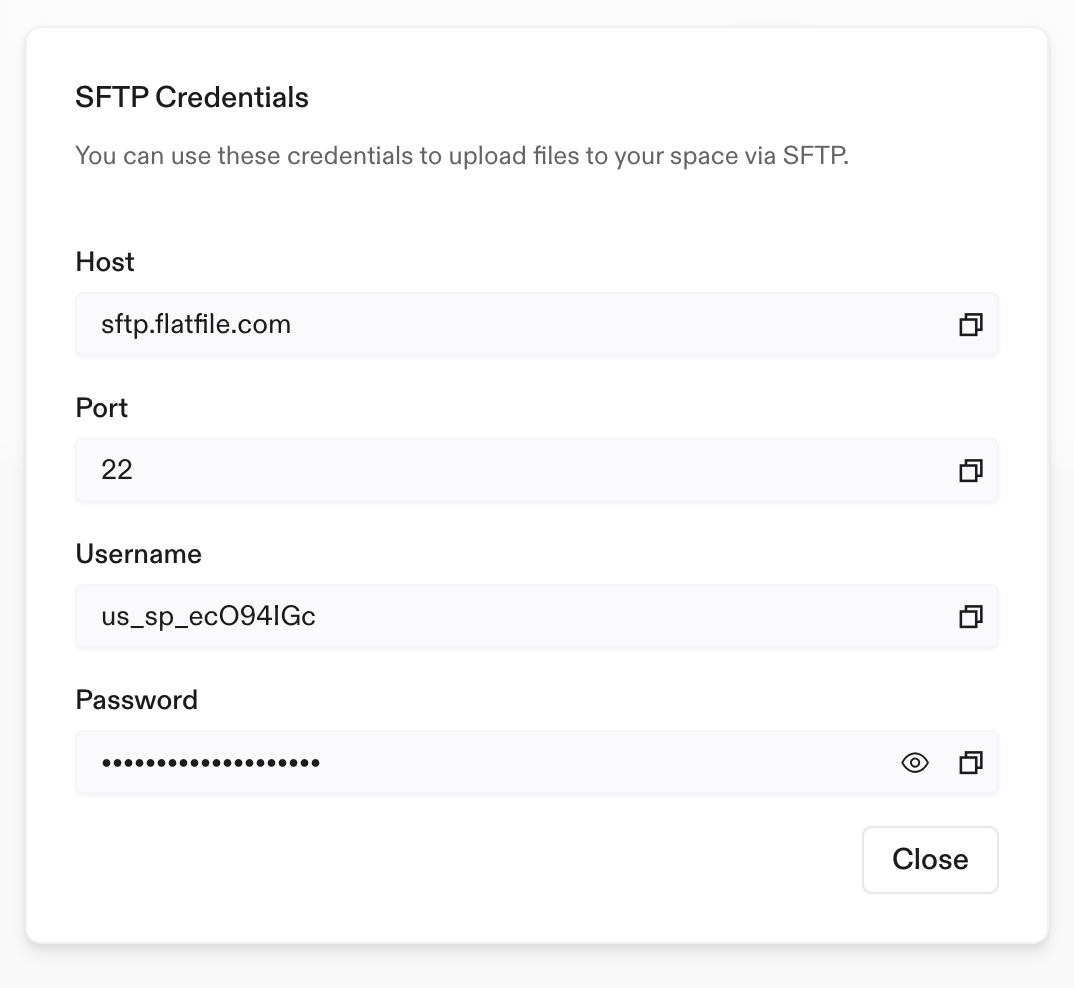 If Get SFTP Credentials is not visible, please reach out to Support to enable Projects.
3. Save your credentials to a secure location.
### From the API
1. Obtain your Secret Key from the [API Keys](https://platform.flatfile.com/dashboard/keys-and-secrets) page.
2. Obtain your Space ID from the Spaces list or the url of your Space.
3. Make an authenticated request to the sftp-credentials endpoint.
```terminal request theme={"system"}
curl -G https://api.x.flatfile.com/v1/auth/sftp-credentials \
-H "Authorization: Bearer sk_123" \
-d spaceId="us_sp_123"
```
```terminal response theme={"system"}
{
"data": {
"username": ,
"password": ,
"host": "sftp.flatfile.com",
"port": "22"
}
}
```
If Get SFTP Credentials is not visible, please reach out to Support to enable Projects.
3. Save your credentials to a secure location.
### From the API
1. Obtain your Secret Key from the [API Keys](https://platform.flatfile.com/dashboard/keys-and-secrets) page.
2. Obtain your Space ID from the Spaces list or the url of your Space.
3. Make an authenticated request to the sftp-credentials endpoint.
```terminal request theme={"system"}
curl -G https://api.x.flatfile.com/v1/auth/sftp-credentials \
-H "Authorization: Bearer sk_123" \
-d spaceId="us_sp_123"
```
```terminal response theme={"system"}
{
"data": {
"username": ,
"password": ,
"host": "sftp.flatfile.com",
"port": "22"
}
}
```
4. Save your credentials to a secure location.
## SFTP Connection
The command line provides a direct way to facilitate SFTP transfers, though other free and open-source SFTP clients are available.
Connect to the SFTP server
Example: sftp [us\_sp\_123@sftp.flatfile.com](mailto:us_sp_123@sftp.flatfile.com)
Upload a file
Example: put myfile.csv
Close the SFTP connection
Example: exit
### Uploading Files
1. Navigate to the directory containing the file you want to upload.
2. From that directory, connect to the SFTP server.
On your first connection you will be prompted to verify the host key.
```bash connect theme={"system"}
sftp us_sp_123@sftp.flatfile.com
```
```bash verify host key theme={"system"}
sftp us_sp_123@sftp.flatfile.com
The authenticity of host 'sftp.flatfile.com' can't be verified...
Are you sure you want to continue connecting (yes/no)?
```
3. When prompted, enter your password.
```bash password theme={"system"}
us_sp_123@sftp.flatfile.com's password:
```
4. Upload a file.
```bash upload theme={"system"}
sftp> put myfile.csv
```
As the file uploads, your terminal will display the progress of the upload.
Flatfile accepts files up to 100 MB. If you need to upload larger files, please reach out to Support.
5. Close the connection.
```bash exit theme={"system"}
sftp> exit
```
### Troubleshooting
If you encounter issues while connecting to the SFTP Server, here are some common error messages and their solutions.
| Error Message | Solution |
| ------------------------------ | -------------------------------------------------------------------------- |
| `Connection refused` | Check your firewall settings and ensure port 22 is open. |
| `Authentication failed` | Verify your credentials haven't expired, refetch credentials if necessary. |
| `Permission denied` | Confirm you're using the correct credentials for the destination Space. |
| `Host key verification failed` | Confirm the host key when prompted to verify. |
For operational efficiency, this process can be automated through scripting to minimize manual intervention.