> ## Documentation Index
> Fetch the complete documentation index at: https://flatfileinc-remove-rss-json.mintlify.site/llms.txt
> Use this file to discover all available pages before exploring further.
# Portal 2 <-> Platform Concepts
> Key terms and concepts for your upgrade
## Overview
This guide is designed to teach you about and use the new Platform syntax.
We've also created a [V2 Shim
package](https://www.npmjs.com/package/@flatfile/v2-shims) to help expedite
your upgrade. You can check out the [quickstart guide](/upgrade/v2_upgrade)
that uses the shim to cut down your time to upgrade.
As you transition from Portal 2.0 to Platform, you'll come across many familiar
elements that resemble what you've known. However, there might be instances
where certain components are no longer present, have been rearranged, or sport a
fresh appearance. To ensure a seamless transition, this guide is designed to
teach you those differences and how to convert. It will highlight both the
similarities and differences between the two versions, enabling you to switch
over with minimal effort. Want to see what it might look like to upgrade? Check
out our [upgrade repository here](https://github.com/FlatFilers/Upgrade-Portal)
to compare the beginning and end of upgrading.
## A comparison
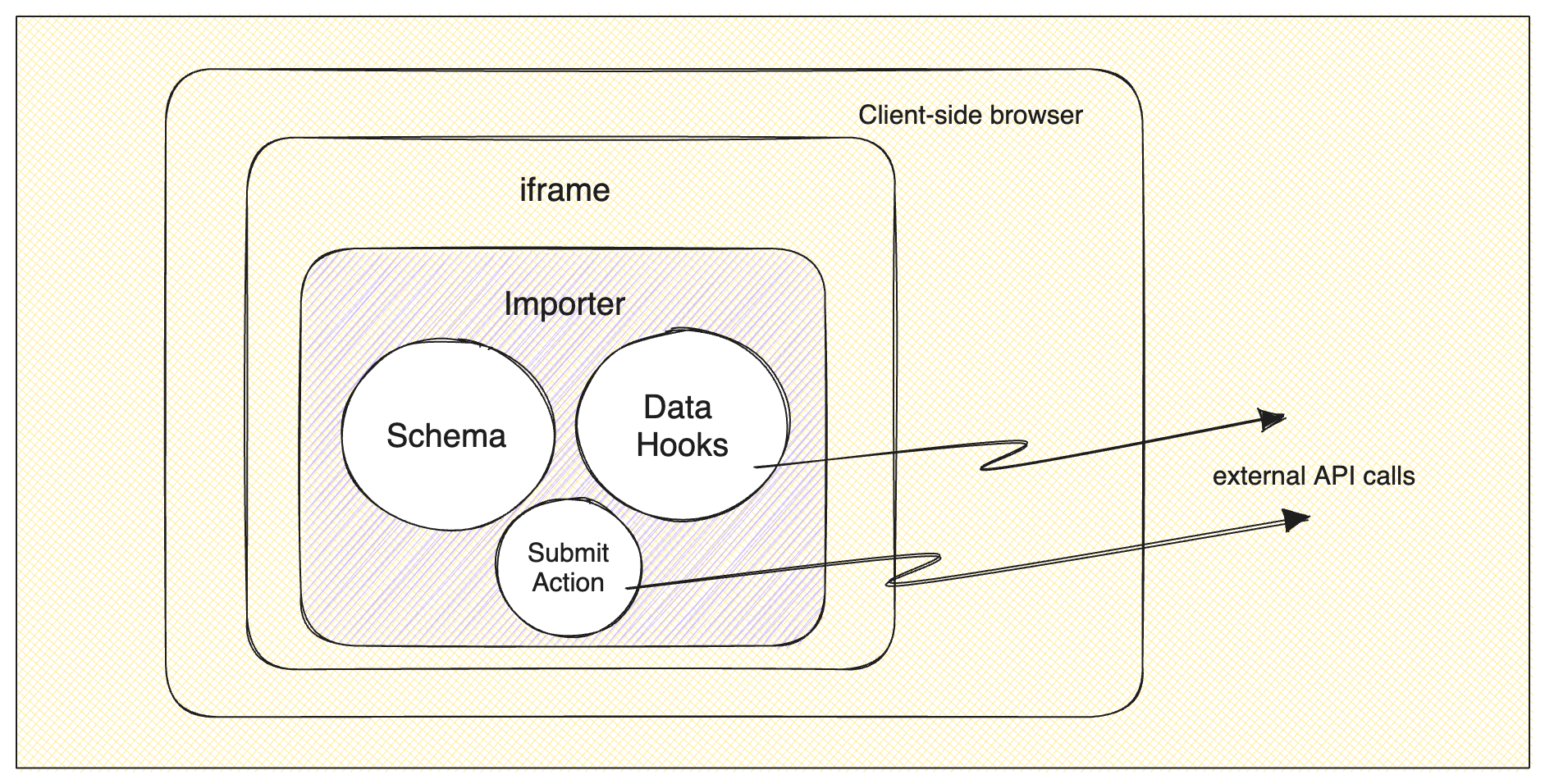
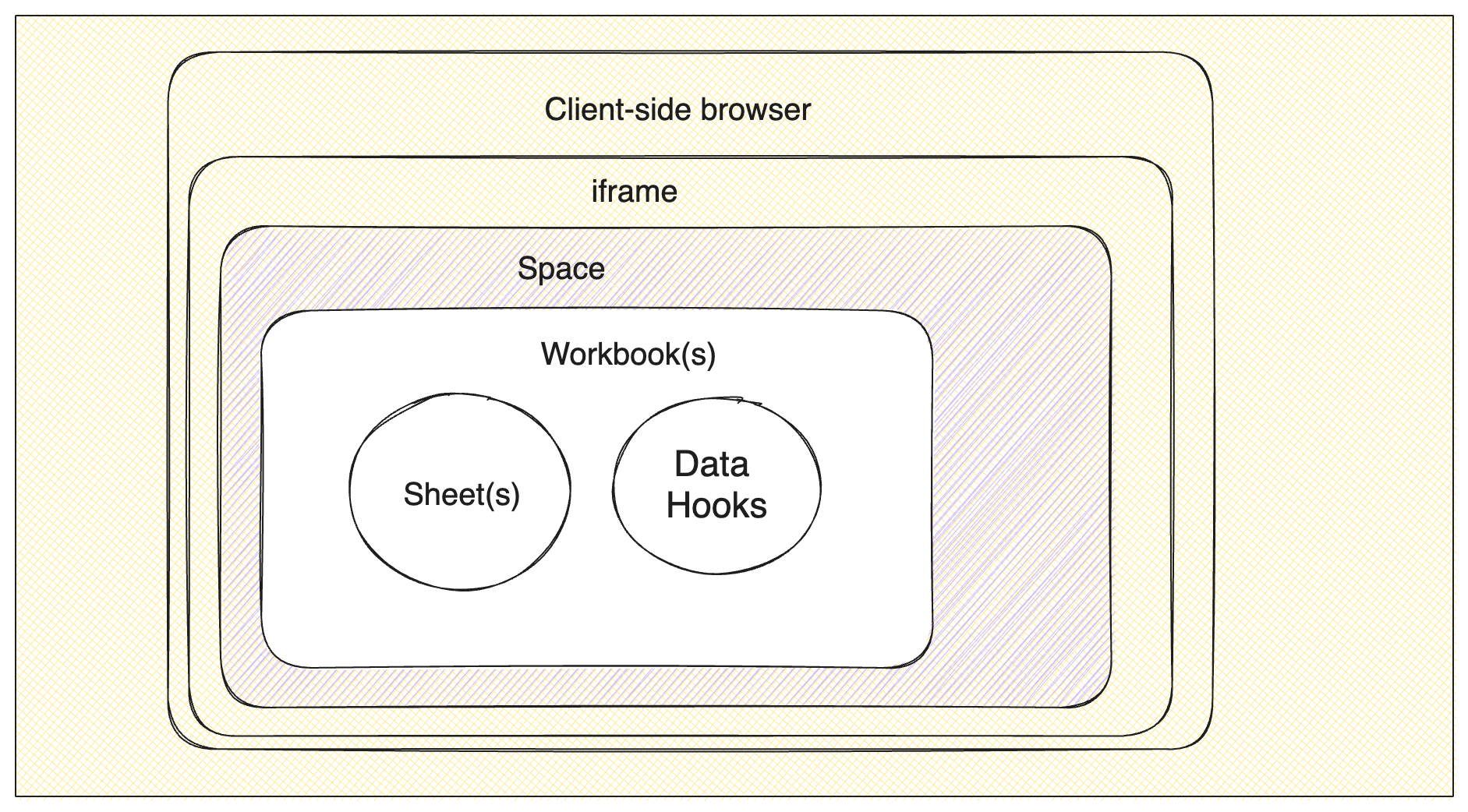
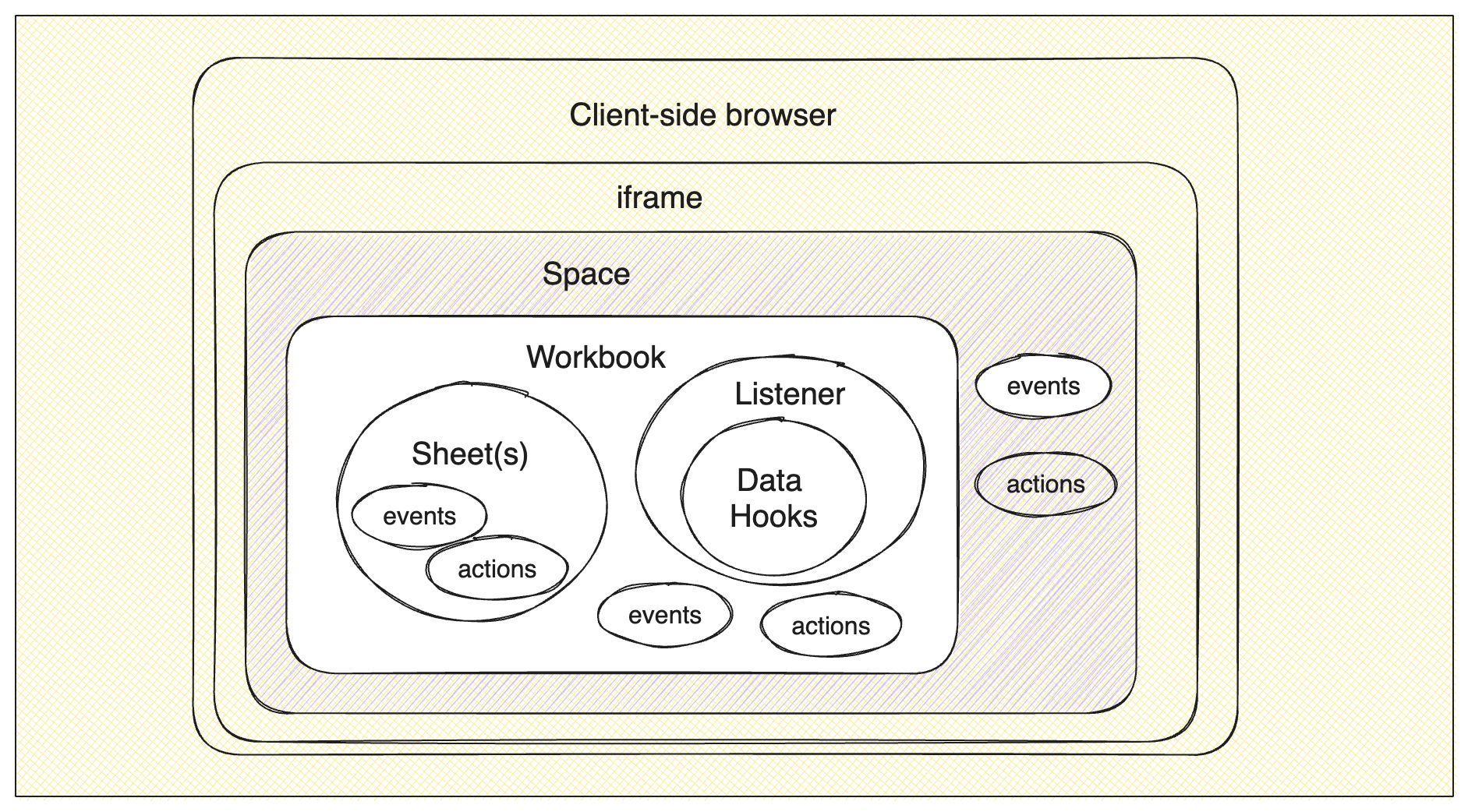
Explore this illustrative diagram that lays out the distinctions between the two
products. While Platform introduces a range of additional and novel concepts
compared to Portal, rest assured, you're not obligated to embrace every new
element to transition your existing importer to Platform. Flexibility remains
key in making the switch.
### Review V2 Portal
### Meet the Platform
## Before you begin
### Core Architecture
#### Meet the Environment
In Portal, setting `devMode: true` flagged imports as “dev” imports, but in
Platform, there are true Environments.
You can have many custom Environments, but upon signup, you will have a
Development, Production, and Demo Environment configured.
All of the other entities (like Spaces, Workbooks, and Sheets) will live in
those Environments.
#### Meet the Space
A Space and its UI constitute the new data importer that has replaced Portal.
The Space is what holds all the Files and Workbooks that are needed to import
data. You can learn more about Spaces and all that they do in our
[Spaces documentation](/learning-center/architecture/spaces).
#### Meet the Workbook
For Platform, it's a good idea to get to know the
[concept of a Workbook](/learning-center/architecture/workbooks). When you're upgrading,
you can think of a Workbook as the place where your import data hangs out.
Unlike Portal, where all the editing and fixing of data happens right in the
browser, Platform also has an option to perform these actions on the server
side. The data gets saved in one or more Workbooks as you go along.
Inside these Workbooks, you'll find one or more Sheets, which are similar to
schemas in Portal. Other than some basic names and settings, the sheet has
something called a "fields array," which is pretty similar to what you know from
Portal.
Keep in mind that if you had multiple importers to handle different data sets
from different places, you will be able to consolidate them by having all your
schemas now live in one Workbook.
### Configuring your schema
#### Meet the Blueprint
Back in Portal, when you received diverse data from the same users and wished to
merge it afterward, you had to establish distinct Portal configurations and
display the appropriate one for each file. However, leveraging Blueprints offers
a more streamlined approach. You can employ a collection of Sheets (akin to the
schemas you constructed in Portal) within a Workbook. This simplifies the
process of centralizing all your data structures and collating the information
cohesively. The added advantage is that you're no longer burdened with managing
multiple uploads from various schemas.
```json Blueprint Example theme={"system"}
{
"sheets": [
{
"name": "products",
"slug": "products",
"readOnly": false,
"allowAdditionalFields": false,
"access": ["add", "edit"],
"fields": [
{
"key": "code",
"label": "Product Code",
"type": "string"
},
{
"key": "description",
"type": "string"
},
{
"key": "price",
"type": "number"
}
],
"actions": [],
"metadata": {}
},
{
"key": "manufacturers",
"label": "Product Manufacturers",
"description": "A list of maunfacturers for the products",
"fields": [
{
"key": "manufacturer_code",
"label": "Manufacturer Code",
"type": "string"
},
{
"key": "manufacturer_name",
"label": "Manufacturer Name",
"type": "string"
}
]
}
]
}
```
### Full Platform diagram
## Upgrade your importer
Now we will do a side-by-side look at how we will go about upgrading your
importer. This guide will show some simple snippets that will compare the
different parts and how they are converted. You can follow along with the full
example in our [Upgrade Repo](https://github.com/FlatFilers/Upgrade-Portal).
### 1. Update your Flatfile button
The skeleton of your application should remain mostly the same. You'll see here
that we can use the same updated UI element when integrating Platform.
```html Start-Portal-2/public/index.html theme={"system"}
```
```html Finish-Platform/public/index.html theme={"system"}
```
### 2. Initialize Flatfile
```js Start-Portal-2/src/index.js theme={"system"}
const { contactSchema } = schemas;
const importer = new FlatfileImporter(
"YOUR_LICENSE_KEY",
contactSchema
);
$("#launch").click(function () {
importer
.requestDataFromUser()
.then(function (results) {
importer.displaySuccess("Thanks for your data.");
$("#raw_output").text(JSON.stringify(results.data, " ", 2));
})
.catch(function (error) {
console.info(error || "window close");
});
});
```
```js Finish-Platform/src/index.js theme={"system"}
import { initializeFlatfile } from "@flatfile/javascript";
import { workbook } from "./schemas";
import { listener } from "../listeners/listener";
//create a new space in modal
window.openFlatfile = ({publishableKey}) => {
if (!publishableKey) {
throw new Error(
"You must provide a publishable key - pass through in index.html"
);
}
const flatfileOptions = {
publishableKey,
workbook,
listener,
sidebarConfig: {
showSidebar: false,
},
// Additional props...
};
initializeFlatfile(flatfileOptions);
};
```
### 3. Build a Workbook
This is where you will convert your Schema(s) into a Workbook. This is the point
where you can combine multiple importers into one by having multiple Sheets on
the Workbook. Your end users would then be able to select which data model they
are uploading into during the import process.
#### Compare and contrast
The workbook consists of three crucial components: the `name` and the `sheets`
properties.
Sheets will share many properties with those found in the Portal schema. You'll
encounter a `name` property (akin to the `type` property in a Portal schema) and
`fields` (which closely resembles your Portal `fields` array).
When it comes to the `fields` array, you'll find quite a few familiar elements
like `key`, `label`, and `description`, which all transition directly from
Portal.
#### About field types
Let's delve deeper into the Portal and Platform `type` property for fields. When
you don't specify this field, both Portal and Platform will assume a default
`string` type. In Portal, the `type: "checkbox"` is now `"type": "boolean"`, and
the `type: "select"` is now `"type": "enum"` in Platform.
Furthermore, keep in mind that while Portal only had three types, Platform has
broadened its range to include `number`, `date`, and `reference` types. To get
more details about these new field types, you can check out our
[documentation](/learning-center/blueprint/field-types). Also, we've prepared a handy reference
table below, outlining all the new types and how they were handled in Portal.
| Portal Type | Platform Type |
| ----------- | ------------- |
| String | String |
| String | Date |
| String | Number |
| Select | Enum |
| Checkbox | Boolean |
| N/A | Reference |
When providing select/enum options there is still an `options` array that has
the same structure as it did in Portal. However, one thing to note is that
this options array has been moved into a new property on the field object
named `config` for Platform.
```js Start-Portal-2/src/schemas.js theme={"system"}
{
label: "Deal Status",
key: "type",
type: "select",
options: [
{ label: "New", value: "new" },
{ label: "Interested", value: "interested" },
{ label: "Meeting", value: "meeting" },
{ label: "Opportunity", value: "opportunity" },
{ label: "Not a fit", value: "unqualified" }
],
validators: [{ validate: "required" }]
}
```
```js Finish-Platform/src/schemas.js theme={"system"}
{
key: "type",
type: "enum",
label: "Deal Status",
constraints: [{ type: "required" }],
config: {
options: [
{ label: "New", value: "new" },
{ label: "Interested", value: "interested" },
{ label: "Meeting", value: "meeting" },
{ label: "Opportunity", value: "opportunity" },
{ label: "Not a fit", value: "unqualified" }
]
}
}
```
#### Set up validations
The final aspect of converting your Portal fields into Platform fields will be
to handle the `validators` from Portal. While Portal offered many different
kinds of validators, only two have been converted in the fields themselves, and
those are `required` and `unique`. All other validations can still be handled,
but are now handled in code instead of a setting. Check out the
[other validators section](#other-validators) for examples.
The `validators` property will now be called `constraints` which is still an
array of objects. The object for each validator has traded in the `validate`
property for a `type` property, but the `unique` and `required` values remain
the same.
```js Start-Portal-2/src/schemas.js theme={"system"}
const schemas = {
contactSchema: {
fields: [
{
label: "First Name",
key: "firstName",
description: "First or full name",
validators: [{ validate: "required" }]
},
{
label: "Last Name",
key: "lastName",
},
{
label: "Email Address",
key: "email",
description: "Please please enter your email",
sizeHint: 1.5,
validators: [
{ validate: "unique" },
{
validate: "regex_matches",
regex:
"(?:[a-z0-9!#$%&'*+/=?^_`{|}~-]+(?:\\.[a-z0-9!#$%&'*+/=?^_`{|}~-]+)*|\"(?:[\\x01-\\x08\\x0b\\x0c\\x0e-\\x1f\\x21\\x23-\\x5b\\x5d-\\x7f]|\\\\[\\x01-\\x09\\x0b\\x0c\\x0e-\\x7f])*\")@(?:(?:[a-z0-9](?:[a-z0-9-]*[a-z0-9])?\\.)+[a-z0-9](?:[a-z0-9-]*[a-z0-9])?|\\[(?:(?:25[0-5]|2[0-4][0-9]|[01]?[0-9][0-9]?)\\.){3}(?:25[0-5]|2[0-4][0-9]|[01]?[0-9][0-9]?|[a-z0-9-]*[a-z0-9]:(?:[\\x01-\\x08\\x0b\\x0c\\x0e-\\x1f\\x21-\\x5a\\x53-\\x7f]|\\\\[\\x01-\\x09\\x0b\\x0c\\x0e-\\x7f])+)\\])",
error: "Must be a valid email address."
}
]
},
{
label: "Phone Number",
key: "phone"
},
{
label: "Date",
key: "date"
},
{
label: "Country",
key: "country"
},
{
label: "Zip Code",
key: "zipCode"
},
{
label: "Subscriber?",
key: "subscriber",
sizeHint: 0.5,
type: "checkbox",
validators: [
{
validate: "regex_matches",
regex: "^$|^(1|0|yes|no|true|false|on|off)$",
regexFlags: { ignoreCase: true }
}
]
},
{
label: "Deal Status",
key: "type",
type: "select",
options: [
{ label: "New", value: "new" },
{ label: "Interested", value: "interested" },
{ label: "Meeting", value: "meeting" },
{ label: "Opportunity", value: "opportunity" },
{ label: "Not a fit", value: "unqualified" }
],
validators: [{ validate: "required" }]
}
],
type: "Contacts",
managed: true
}
};
```
```js Finish-Platform/src/schemas.js theme={"system"}
export const workbook = {
name: "Contacts",
labels: ["pinned"],
sheets: [
{
name: "Contacts",
slug: "contacts",
fields: [
{
key: "firstName",
type: "string",
description: "First or full name",
label: "First Name",
constraints: [{ type: "required" }]
},
{
key: "lastName",
type: "string",
label: "Last Name",
},
{
key: "email",
type: "string",
label: "Email address",
description: "Please please enter your email",
constraints: [{ type: "unique" }]
},
{
key: "phone",
type: "string",
label: "Phone Number",
},
{
key: "date",
type: "string",
label: "Date",
},
{
key: "country",
type: "string",
label: "Country",
},
{
key: "zipCode",
type: "string",
label: "Zip Code",
},
{
key: "subscriber",
type: "boolean",
label: "Subscriber?",
config: {
allow_indeterminate: false
}
},
{
key: "type",
type: "enum",
label: "Deal Status",
constraints: [{ type: "required" }],
config: {
options: [
{ label: "New", value: "new" },
{ label: "Interested", value: "interested" },
{ label: "Meeting", value: "meeting" },
{ label: "Opportunity", value: "opportunity" },
{ label: "Not a fit", value: "unqualified" }
]
}
},
],
},
],
actions: [
{
operation: "submitActionFg",
mode: "foreground",
label: "Submit foreground",
description: "Submit data to webhook.site",
primary: true,
},
],
};
```
### 4. Transform Data
Coming from Portal, you are likely familiar with the concept of Data Hooks. The
same sort of functionality can be obtained in Platform, but they have moved into
Listeners and use plugins like the
[record hook plugin](https://flatfile.com/plugins/plugin-record-hook). You can
read more about [Listeners here](/learning-center/tutorials/projects/meet-the-listener) and more about
all of our [Plugins here](https://flatfile.com/plugins/).
```js Start-Portal-2/src/index.js theme={"system"}
importer.registerRecordHook(async (record, index) => {
let out = {};
if (record.email) {
if (record.email.includes('flatfile.io')) {
out.email = {
info: [
{
message: "Flatfile emails should use flatfile.com ending only",
level: "error"
}
]
}
}
}
if (!record.phone && !record.email) {
out.phone = out.email = {
info: [
{
message: "Please include one of either Phone or Email.",
level: "warning"
}
]
};
}
if (record.phone) {
let validPhone = formatPhoneNumber(record.phone);
if (validPhone !== "Invalid phone number") {
out.phone = {
value: validPhone,
info: []
};
} else {
out.phone = {
info: [
{
message: "This does not appear to be a valid phone number",
level: "error"
}
]
};
}
}
if (record.date) {
//reformat the date to ISO format
let thisDate = format(new Date(record.date), "yyyy-MM-dd");
//create var that holds the date value of the reformatted date as
//thisDate is only a string
let realDate = parseISO(thisDate);
if (isDate(realDate)) {
out.date = {
value: thisDate,
info: isFuture(realDate) ?
[
{
message: "Date cannot be in the future.",
level: "error"
}
]
: []
};
} else {
out.date = {
info: [
{
message: "Please check that the date is formatted YYYY-MM-DD.",
level: "error"
}
]
};
}
}
//country name lookup, replace with country code
if (record.country) {
if (!countries.find((c) => c.code === record.country)) {
const suggestion = countries.find(
(c) => c.name.toLowerCase().indexOf(record.country.toLowerCase()) !== -1
);
out.country = {
value: suggestion ? suggestion.code : record.country,
info: !suggestion ?
[
{
message: "Country code is not valid",
level: "error"
}
]
: []
};
}
}
if (
record.zipCode &&
record.zipCode.length < 5 &&
(record.country === "US" || out.country.value === "US")
) {
out.zipCode = {
value: record.zipCode.padStart(5, "0"),
info: [{ message: "Zipcode was padded with zeroes", level: "info" }]
};
}
return out;
});
```
```js Finish-Platform/listeners/listener.js theme={"system"}
listener.use(
recordHook("contacts", (record) => {
const email = record.get("email");
const phone = record.get("phone");
const date = record.get("date");
const country = record.get("country");
const zipCode = record.get("zipCode");
if (email.includes('flatfile.io')) {
record.addError("email", "Flatfile emails should use flatfile.com ending only")
}
if (!email && !phone) {
record.addWarning(["email", "phone"], "Please include one of either Phone or Email.")
}
if (phone) {
let validPhone = formatPhoneNumber(phone)
if (validPhone !== "Invalid phone number") {
record.set("phone", validPhone)
} else {
record.addError("phone", "This does not appear to be a valid phone number")
}
}
if (date) {
let thisDate = format(new Date(record.date), "yyyy-MM-dd");
let realDate = parseISO(thisDate);
if (isDate(realDate)) {
record.set("date", thisDate)
isFuture(realDate) && record.addError("date", "Date cannot be in the future.");
} else {
record.addError("date", "Please check that the date is formatted YYYY-MM-DD.")
}
}
if (country) {
if (!countries.find((c) => c.code === country)) {
const suggestion = countries.find(
(c) => c.name.toLowerCase().indexOf(country.toLowerCase()) !== -1
);
record.set("country", suggestion ? suggestion.code : country);
!suggestion && record.addError("country", "Country code is not valid")
}
}
if (zipCode && zipCode.length < 5 && country === "US") {
record.set("zipCode", zipCode.padStart(5, "0"))
record.addInfo("zipCode", "Zipcode was padded with zeroes")
}
return record;
})
);
```
#### Other Validators
In the [set up validations](#set-up-validations) section above, we talked about
converting the `required` and `unique` validators, but validators like `regex`
or `required_with` are now handled in code in a Listener.
*Regex Validation Example:*
```js Portal 2 theme={"system"}
fields: [
{
label: "Company Code",
key: "companyCode",
validators: [{ validate: 'regex_matches', regex: '^[a-zA-Z0-9]*$' }]
},
]
```
```js Platform listener.js theme={"system"}
listener.use(
recordHook("contacts", (record) => {
const companyCode = record.get('companyCode')
const regex = /^[a-zA-Z0-9]*$/;
if (!regex.test(companyCode)) {
record.addError('companyCode', 'Must be an alpha-numeric value')
}
})
)
```
*`required_with` Validation Example:*
```js Portal 2 theme={"system"}
fields: [
{
key: "city",
label: "City",
},
{
key: "state",
label: "State",
validators: [
{
validate: "required_with",
fields: ["city"],
},
],
},
]
```
```js Platform listener.js theme={"system"}
listener.use(
recordHook("contacts", (record) => {
const city = record.get('city')
const state = record.get('state')
if (city && !state) {
record.addError('state', 'State must be provided if City is present')
}
})
)
```
### 5. Match your brand
Custom theming in Portal was a crucial part of making the importer like a part
of your application. Platform also has custom theming that you can use to do the
same. Check out our [theming guide](/learning-center/guides/theming) to see what all is
configurable in Platform.
### 6. Set the destination
In Portal, you were able to specify a webhook endpoint using `webhookUrl` -OR-
use the returned data within the Promise to do whatever needed to be done with
your data. With Platform, we use the Listeners to wait for the submit action to
happen and then act on it.
```js Start-Portal-2/src/index.js theme={"system"}
$("#launch").click(function () {
importer
.requestDataFromUser()
.then(function (results) {
importer.displaySuccess("Thanks for your data.");
$("#raw_output").text(JSON.stringify(results.data, " ", 2));
})
.catch(function (error) {
console.info(error || "window close");
});
});
```
```js Finish-Platform/listener/listener.js theme={"system"}
listener.filter({ job: "workbook:submitActionFg" }, (configure) => {
configure.on("job:ready", async ({ context: { jobId } }) => {
try {
await flatfile.jobs.ack(jobId, {
info: "Getting started.",
progress: 10,
});
console.log("Make changes here when an action is clicked");
await flatfile.jobs.complete(jobId, {
outcome: {
message: "This job is now complete.",
},
});
} catch (error) {
console.error("Error:", error.stack);
await flatfile.jobs.fail(jobId, {
outcome: {
message: "This job encountered an error.",
},
});
}
});
});
```
### 7. Customize
While everything above gives you all sort of great information about how your
Portal implementation will convert to Platform, it's just the beginning of all
the amazing new things you can do with the Platform. Below we are going to share
some links that can help make your already great workflow even better.
 ### Meet the Platform
 ## Before you begin
### Core Architecture
#### Meet the Environment
In Portal, setting `devMode: true` flagged imports as “dev” imports, but in
Platform, there are true Environments.
You can have many custom Environments, but upon signup, you will have a
Development, Production, and Demo Environment configured.
All of the other entities (like Spaces, Workbooks, and Sheets) will live in
those Environments.
#### Meet the Space
A Space and its UI constitute the new data importer that has replaced Portal.
The Space is what holds all the Files and Workbooks that are needed to import
data. You can learn more about Spaces and all that they do in our
[Spaces documentation](/learning-center/architecture/spaces).
#### Meet the Workbook
For Platform, it's a good idea to get to know the
[concept of a Workbook](/learning-center/architecture/workbooks). When you're upgrading,
you can think of a Workbook as the place where your import data hangs out.
Unlike Portal, where all the editing and fixing of data happens right in the
browser, Platform also has an option to perform these actions on the server
side. The data gets saved in one or more Workbooks as you go along.
Inside these Workbooks, you'll find one or more Sheets, which are similar to
schemas in Portal. Other than some basic names and settings, the sheet has
something called a "fields array," which is pretty similar to what you know from
Portal.
## Before you begin
### Core Architecture
#### Meet the Environment
In Portal, setting `devMode: true` flagged imports as “dev” imports, but in
Platform, there are true Environments.
You can have many custom Environments, but upon signup, you will have a
Development, Production, and Demo Environment configured.
All of the other entities (like Spaces, Workbooks, and Sheets) will live in
those Environments.
#### Meet the Space
A Space and its UI constitute the new data importer that has replaced Portal.
The Space is what holds all the Files and Workbooks that are needed to import
data. You can learn more about Spaces and all that they do in our
[Spaces documentation](/learning-center/architecture/spaces).
#### Meet the Workbook
For Platform, it's a good idea to get to know the
[concept of a Workbook](/learning-center/architecture/workbooks). When you're upgrading,
you can think of a Workbook as the place where your import data hangs out.
Unlike Portal, where all the editing and fixing of data happens right in the
browser, Platform also has an option to perform these actions on the server
side. The data gets saved in one or more Workbooks as you go along.
Inside these Workbooks, you'll find one or more Sheets, which are similar to
schemas in Portal. Other than some basic names and settings, the sheet has
something called a "fields array," which is pretty similar to what you know from
Portal.
 ## Upgrade your importer
Now we will do a side-by-side look at how we will go about upgrading your
importer. This guide will show some simple snippets that will compare the
different parts and how they are converted. You can follow along with the full
example in our [Upgrade Repo](https://github.com/FlatFilers/Upgrade-Portal).
### 1. Update your Flatfile button
The skeleton of your application should remain mostly the same. You'll see here
that we can use the same updated UI element when integrating Platform.
## Upgrade your importer
Now we will do a side-by-side look at how we will go about upgrading your
importer. This guide will show some simple snippets that will compare the
different parts and how they are converted. You can follow along with the full
example in our [Upgrade Repo](https://github.com/FlatFilers/Upgrade-Portal).
### 1. Update your Flatfile button
The skeleton of your application should remain mostly the same. You'll see here
that we can use the same updated UI element when integrating Platform.